DEVICE SETUP GUIDE Premium experience

Install Trex IPTV on Smart TV, Fire TV, mobile, computer and IPTV boxes

Follow a safe six-step setup, then use the device-specific instructions for your platform. Keep account credentials private and install players only from trusted or support-verified sources.

USD pricing Device setup help 24/7 support availability
Premium service overview Online
LIVE Trex IPTV logo on the premium service overview panel TV · Sports · Movies · Series
Secure setup Premium UI
51K+ Live channels
200K+ Movies
45K+ Series
$9.99 Plans from

Security note: never post your username, password, playlist or portal URL publicly. Confirm any APK address with support before downloading and disable temporary sideload permissions when finished.

QUICK SETUP

Start streaming in six clear steps

The exact buttons vary by app, but the overall process is similar across compatible devices.

  1. 01

    Confirm the device and connection count

    Identify the exact device model and confirm how many simultaneous connections are included with the account.

  2. 02

    Choose a compatible IPTV player

    Select a supported player available for the device operating system and region.

  3. 03

    Install from a trusted source

    Use the official app store or a support-verified download source, then keep the application updated.

  4. 04

    Add the supplied account details

    Enter the exact username, password, server URL, M3U playlist or portal information issued for the account.

  5. 05

    Allow the playlist and EPG to load

    Keep the app open while the initial catalog and guide data finish loading.

  6. 06

    Test live TV, VOD and playback quality

    Check several categories on the real network and save working channels as favorites where supported.

DEVICE-SPECIFIC GUIDES

Choose the platform you use at home

Use the instructions for the exact operating system and player. App availability can differ by country, model and software version.

SMART TV

Samsung, LG, Android TV and Google TV

  1. Open the television’s official app store.
  2. Search for the compatible player currently recommended by support.
  3. Install the app and complete any separate player activation if required.
  4. Add the supplied account using the supported login method.
  5. Wait for live TV, movies, series and EPG data to load.
  6. Test several channels and create favorites.

Check first: TV model, operating system version, available storage and app-region availability.
AMAZON FIRE TV

Fire TV Stick and Fire TV devices

  1. Search the Amazon Appstore for the recommended compatible player.
  2. If the app is available, install it directly and skip sideloading.
  3. If support provides a verified APK, install Downloader from the official Appstore.
  4. Allow installation only for Downloader, enter the exact verified URL and install the file.
  5. Remove the downloaded APK and disable the temporary installation permission.
  6. Add the supplied account and test playback.

Safety: never use an APK code or URL copied from an unrelated public post.

ANDROID

Phones, tablets, Android boxes and Nvidia Shield

  1. Open Google Play and install the recommended compatible player.
  2. Grant only the permissions the app needs for playback.
  3. Add the supplied username, password and server URL or playlist.
  4. Allow the catalog to load before switching screens repeatedly.
  5. Adjust the player decoder only if playback requires it.
  6. Test on Wi-Fi and Ethernet where available.
APPLE

iPhone, iPad and Apple TV

  1. Open the Apple App Store on the target device.
  2. Choose a compatible player that supports the issued login format.
  3. Review any app fee separately from the subscription.
  4. Add the account details exactly as supplied.
  5. Allow playlist and guide data to finish loading.
  6. Test AirPlay only if supported by the player and source.
COMPUTERS

Windows, macOS and Linux

  1. Use a supported desktop player from its official source.
  2. Keep the operating system, browser and codecs updated.
  3. Add the supplied playlist or account format.
  4. Choose hardware decoding only if the player and graphics driver support it.
  5. Test playback with other downloads paused.
  6. Do not save credentials on a shared or public computer.
IPTV BOXES

Formuler, MAG and other supported boxes

  1. Send support the exact device model before ordering.
  2. Use the device-native app, portal or supported middleware method.
  3. Provide a MAC address only through the approved private support channel when required.
  4. Enter the supplied portal or account details.
  5. Restart the device after the first configuration.
  6. Verify live TV, VOD, EPG and remote-control navigation.
LOGIN FORMATS

Understand the account details before entering them

Use the method supplied for your account. Converting between formats can break authentication or expose credentials.

Username, password and server URL

Often called an API or Xtream-style login in compatible players.

M3U playlist

A private playlist address loaded by compatible applications; never share it publicly.

Portal address

Used by selected IPTV boxes or middleware together with device registration.

Device or app activation

Some Smart TV players use a separate website and device code to add a playlist.

TROUBLESHOOTING

Fix common setup and playback problems methodically

Change one thing at a time so you know which step solved the problem.

Login rejected

  • Check for spaces or typing errors.
  • Confirm the server URL includes the correct protocol and port.
  • Verify the account has started and has not expired.
  • Send a screenshot with credentials hidden.

Playlist not loading

  • Wait for the initial large catalog import.
  • Restart the player and device.
  • Try a stable alternate network briefly.
  • Check device storage and app cache.

Buffering

  • Compare several streams.
  • Use Ethernet or improve Wi-Fi signal.
  • Pause competing downloads.
  • Try HD instead of a higher-resolution source.

Missing EPG

  • Refresh playlist and guide data.
  • Check device time zone.
  • Allow the guide to finish importing.
  • Remember some sources have no guide.
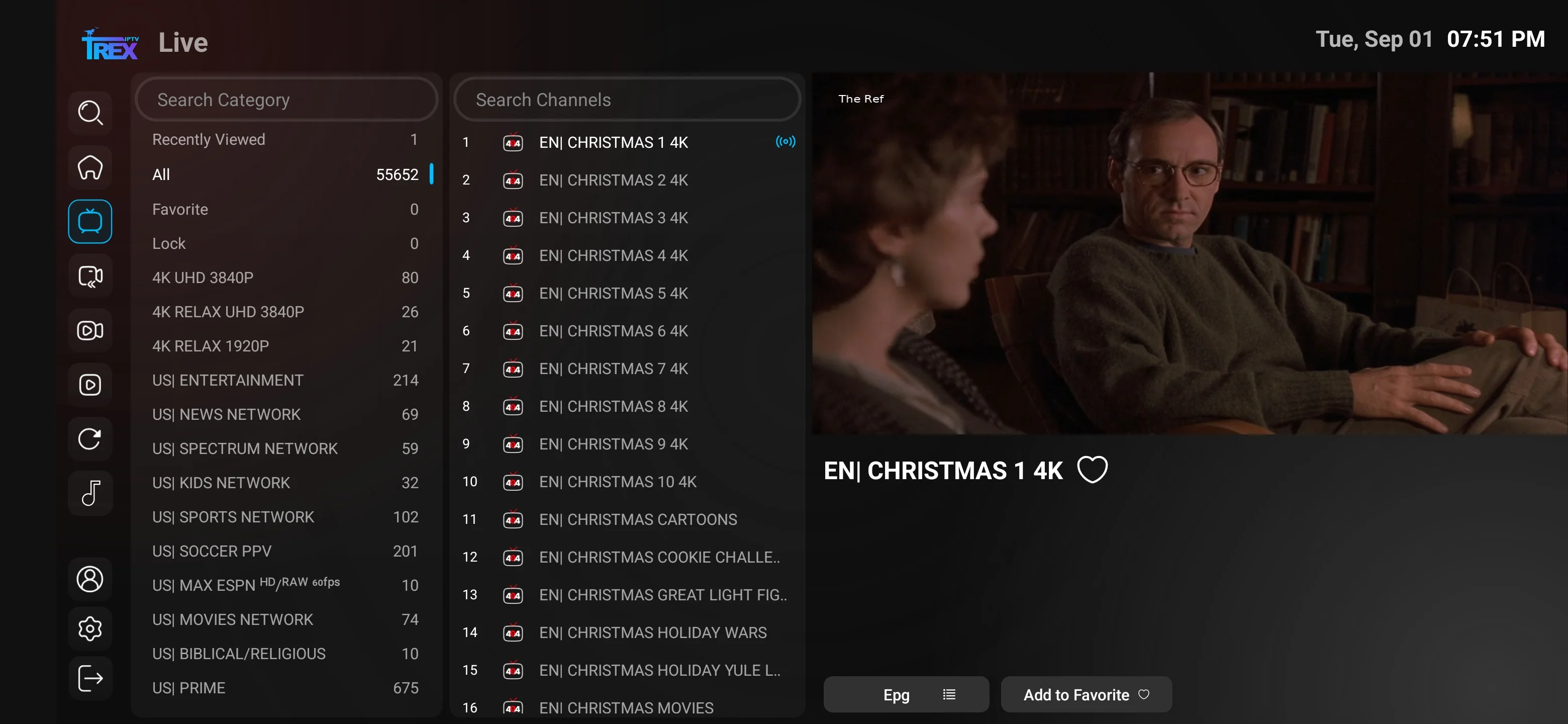
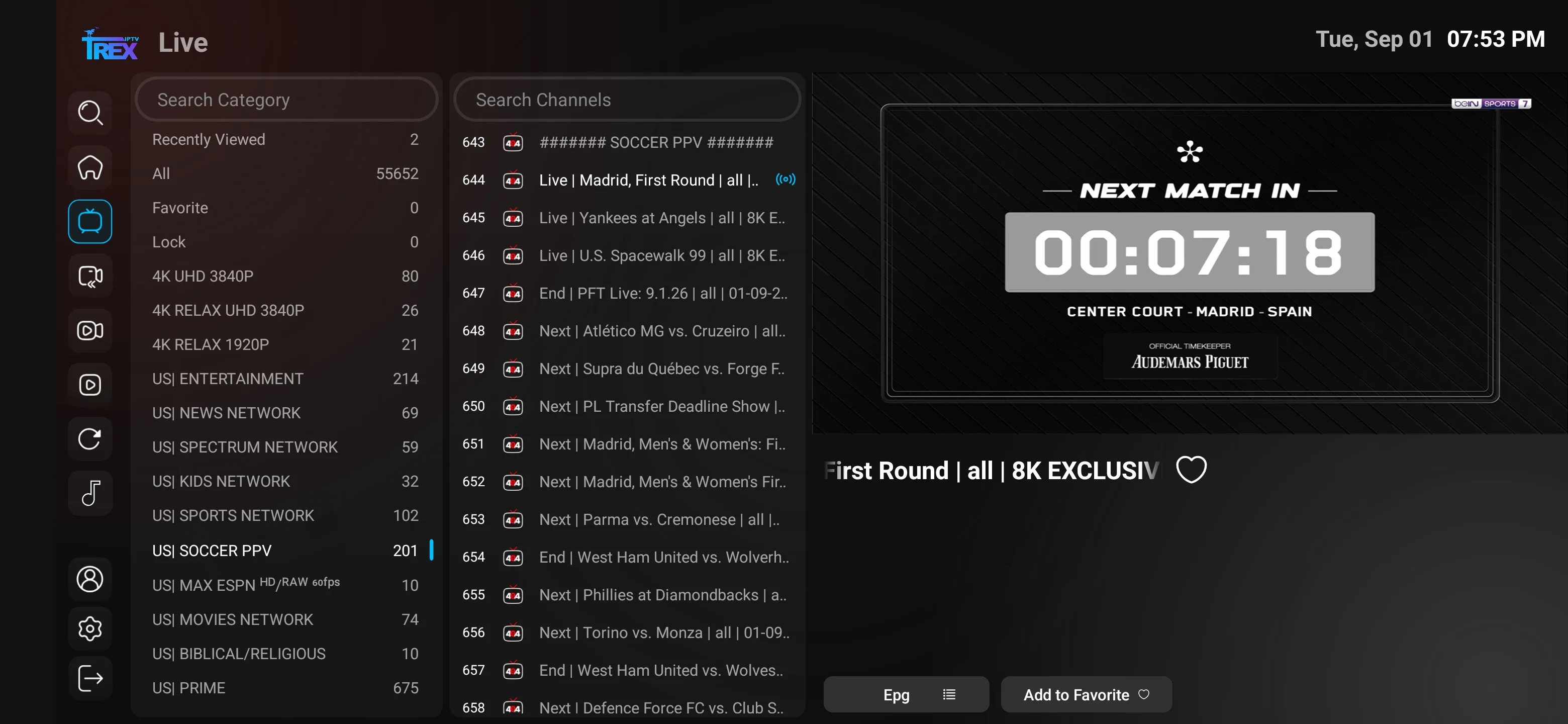
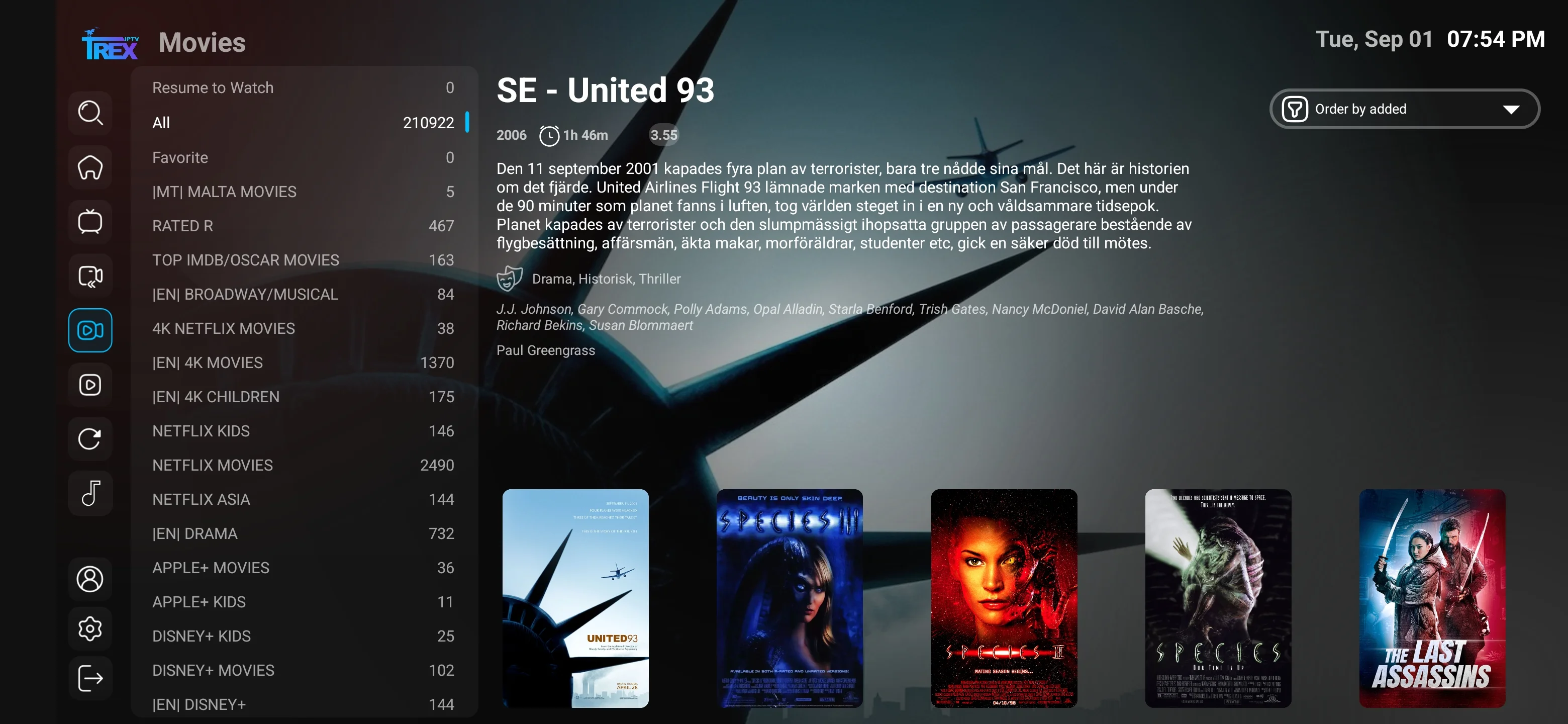
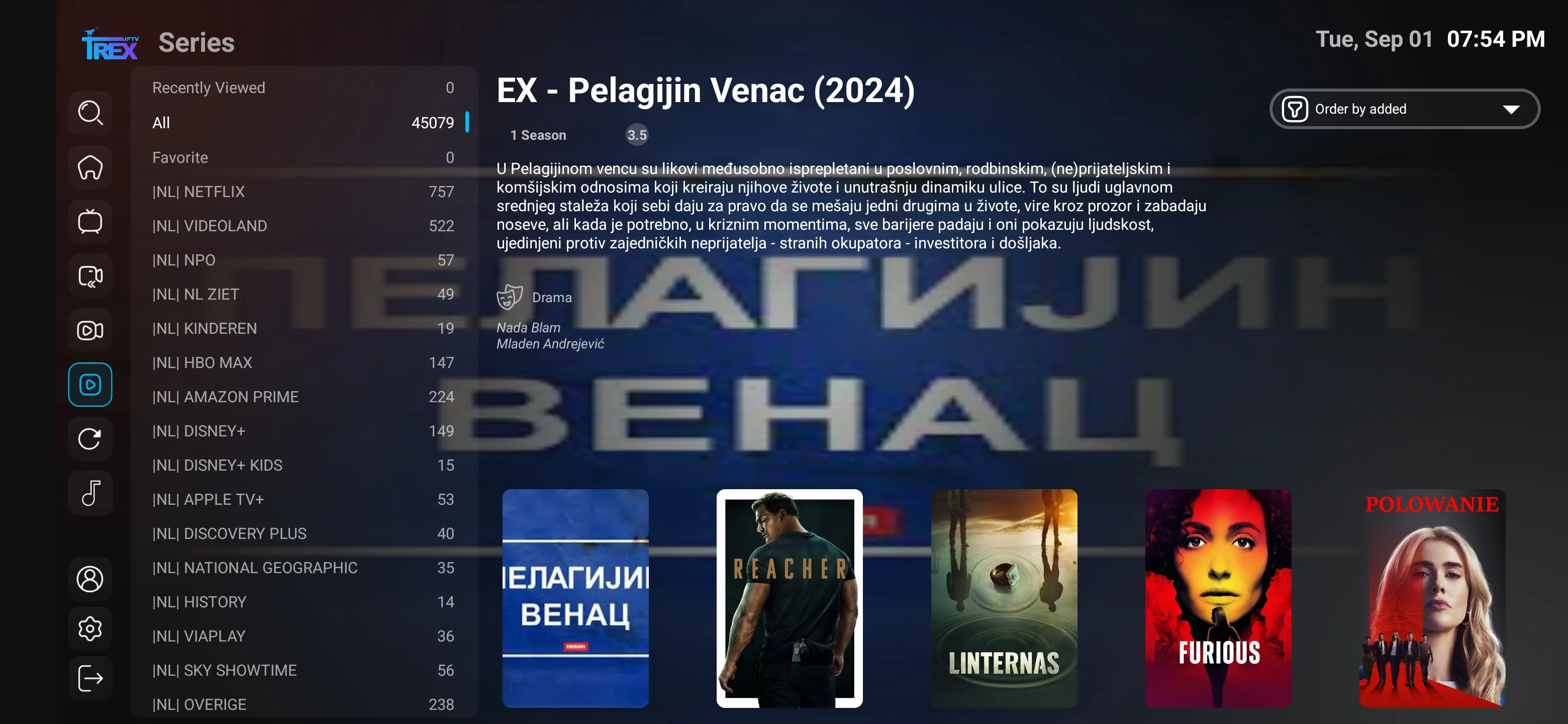
PLAYER PREVIEW

Compatible IPTV player screenshots

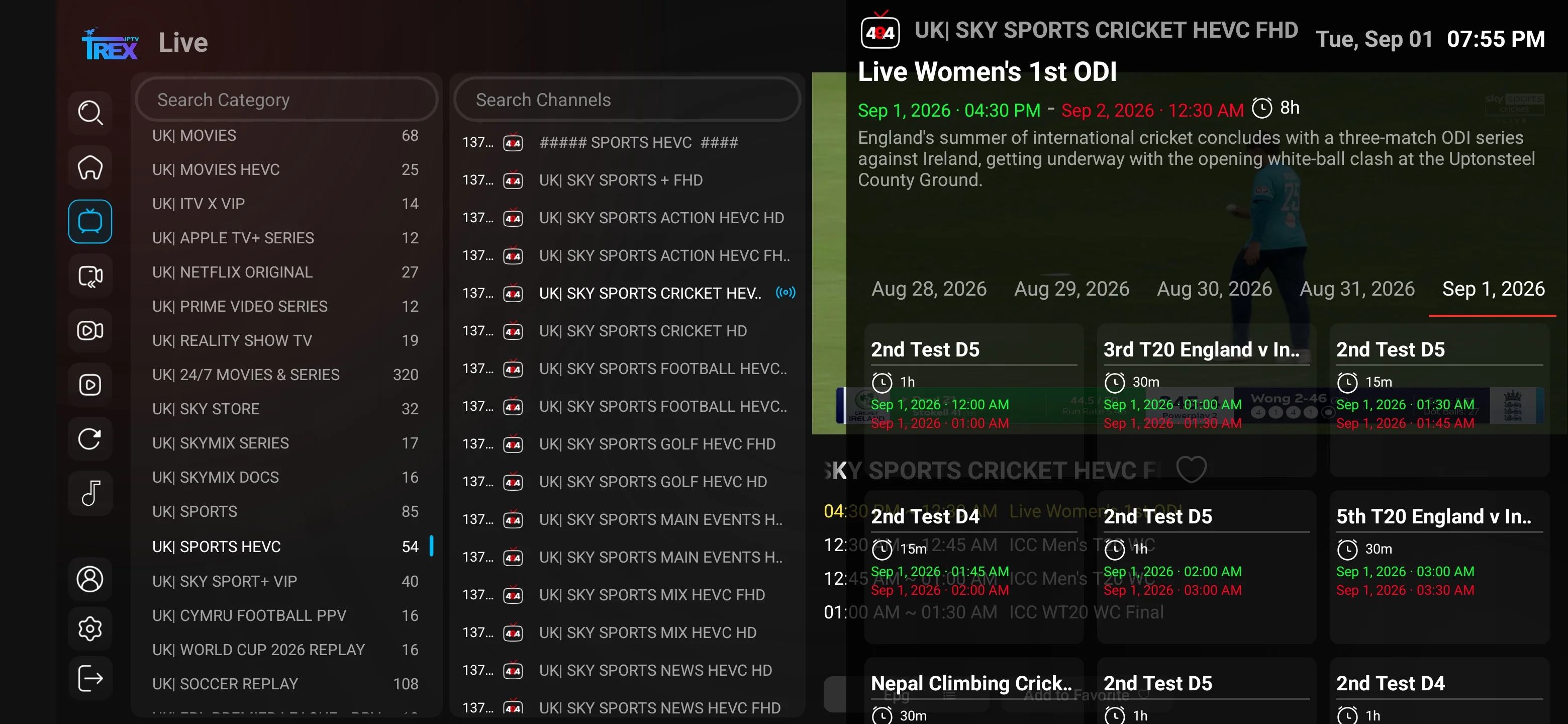
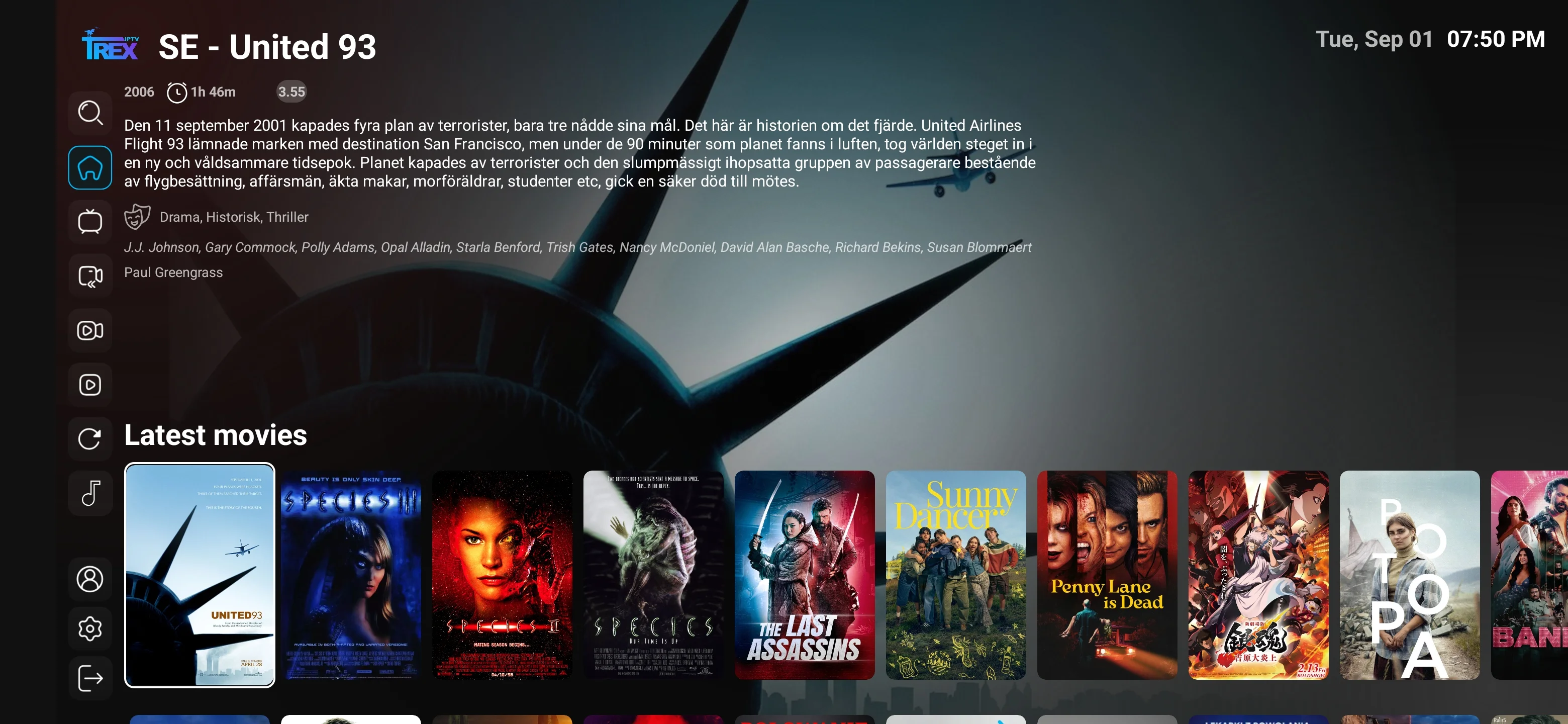
These interface examples show common live TV, VOD, guide, search and settings screens. App layouts and available content can differ by device, app version and account.

Compatible IPTV player home screen with live TV, movies, series, search and settings navigation
Player home interface Interface example; current layout may vary.
Live TV channel browser in a compatible IPTV player used with account access
Live TV browser Interface example; current layout may vary.
IPTV channel category screen for browsing regional and topic-based groups
Channel categories Interface example; current layout may vary.
Movies and video-on-demand library shown in a compatible IPTV player
Movies and VOD Interface example; current layout may vary.
Series and episodic television library interface in a compatible IPTV app
Series library Interface example; current layout may vary.
Electronic programme guide interface showing scheduled listings where EPG data is available
EPG TV guide Interface example; current layout may vary.

Screenshots demonstrate compatible player navigation only. They do not guarantee that every channel, title, feature or quality level is available on every account.

FAQ

Trex IPTV installation questions

Answers about login formats, Fire TV, Smart TV, Android, Apple devices, buffering, EPG and secure support.

What do I need before installing Trex IPTV?

Prepare an active account, a compatible device, a supported IPTV player, a stable internet connection and the exact login format supplied by support. Keep credentials private.

Which login method will I receive?

Depending on the device and player, login may use a username and password with a server URL, an M3U playlist, a portal address or a device-specific method. Use only the format issued for your account.

How do I install Trex IPTV on Amazon Fire TV?

Install a compatible player from the Amazon Appstore where available. If support provides a verified APK method, enable installation only for the required installer, use the exact verified URL, then disable that permission again after installation.

How do I set up Trex IPTV on Samsung or LG Smart TV?

Open the television app store, install a currently supported IPTV player, follow that app’s activation process and add the supplied account details. App availability differs by TV model, operating system and region.

Can I install Trex IPTV on Android TV or Google TV?

Yes, using a compatible player from the Play Store or a support-verified source. Add the supplied login details, allow the playlist to load and test live TV, VOD and EPG.

Can I use Trex IPTV on iPhone, iPad or Apple TV?

Use a compatible IPTV player available in the Apple App Store for your device and region. App interfaces and supported login formats vary, so confirm the recommended option before purchase.

Why does the playlist take time to load?

A large catalog can take longer on first login, especially on lower-memory devices. Keep the app open, use a stable connection and avoid repeated forced refreshes. Ask support if loading never completes.

What should I do if channels buffer?

Restart the app, device and router; test several streams; compare Ethernet with Wi-Fi; pause other downloads; lower the selected quality; and try another compatible player if available. Send support the exact channel, time, device and app.

Why is the EPG empty or using the wrong time?

Refresh the playlist and EPG, verify the device time zone, restart the player and allow guide data to finish loading. Some sources do not supply EPG, and mapping differs by app.

Can I use the same credentials on multiple devices?

You may configure more than one compatible device, but concurrent playback must stay within the connection count confirmed for your order. Exceeding it can interrupt playback or trigger account protection.

How do I update a compatible IPTV app?

Use the official app store or the same trusted source used for installation. Back up player settings where supported, and never install an update from an unknown message or unverified download page.

What details should I send support for a setup problem?

Include the device brand and model, operating system, app name and version, login method, exact error message, approximate time and the troubleshooting steps already tried. Do not post credentials publicly.

TREX UPDATES

Get setup tips and new guide alerts

Receive occasional Trex IPTV device, player, service and sports-guide updates. No password or account credential is ever required.

BEFORE YOU ORDER

Confirm your device, app and preferred content

Tell support what you plan to watch and which device you use. We can point you to a compatible setup and explain the current plan terms before payment.

Device check Category check Clear USD total
Free Trial Live Help